
Home / Finding guide
How to use the Mulebuy Spreadsheet, from a search to your door
Find and compare first, then follow the six Mulebuy screens: search, selection and payment, Orders, Warehouse, parcel submission and tracking.
Reviewed October 20, 2026
Before following the six screens
This walkthrough follows Mulebuy’s official buying-guide sequence, illustrated with its desktop and mobile demonstration screens from 2026. The current account determines available actions, fees and deadlines. Our October 2026 public-site check did not establish that ordering was available; it does not establish the state of an individual account.
Prepare the seller URL, exact option, quantity, measurements and a budget that includes international shipping. The catalogue helps you find and compare; Mulebuy’s own account handles purchase, warehouse services and parcels. If you choose a different agent, use that agent’s instructions rather than transferring Mulebuy’s button names or terms.
Compare a short list → · Read the received-item evidence · Find help by order stage
1. Search for the product
The homepage search field accepts a marketplace product link or keywords. The camera icon is the image-search entry. For an exact find, keep the seller URL; a visually similar search result can belong to a different shop or option.
In the illustrated screen, paste the seller link into Enter Product Link Or Keyword and use Search. Image search starts from the camera icon. Check the result against the original listing before continuing.
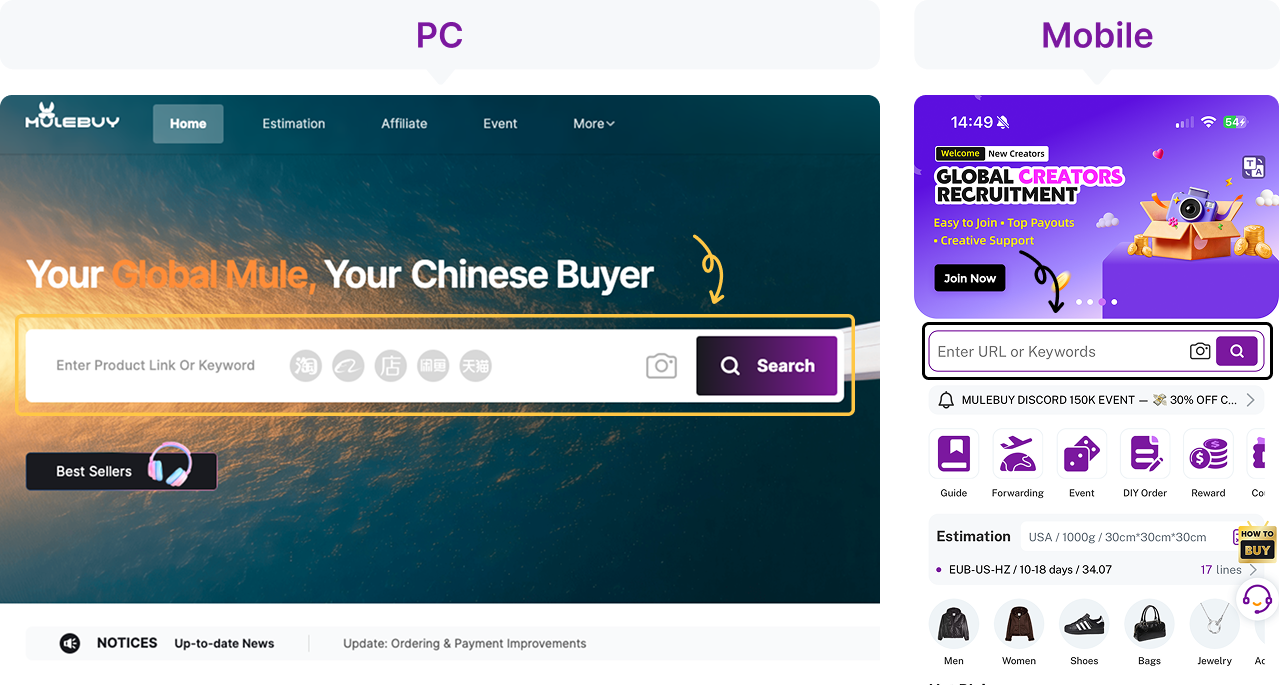
Save the link beside each comparable. A lower-priced result belongs in the same comparison only if its option and included contents match.
2. Choose the option, then complete item payment
Open the product and choose the exact colour, size and quantity. Read the price for that selection, the seller’s domestic postage and any separate checkout charge. The international parcel is a later transaction.
The official example shows Color, Size, Quantity and Note on desktop, and Add To Cart on mobile. Adding to the cart is not payment. Continue through checkout, confirm the requested information and keep the payment record. Ask about missing specifications before authorising a purchase.
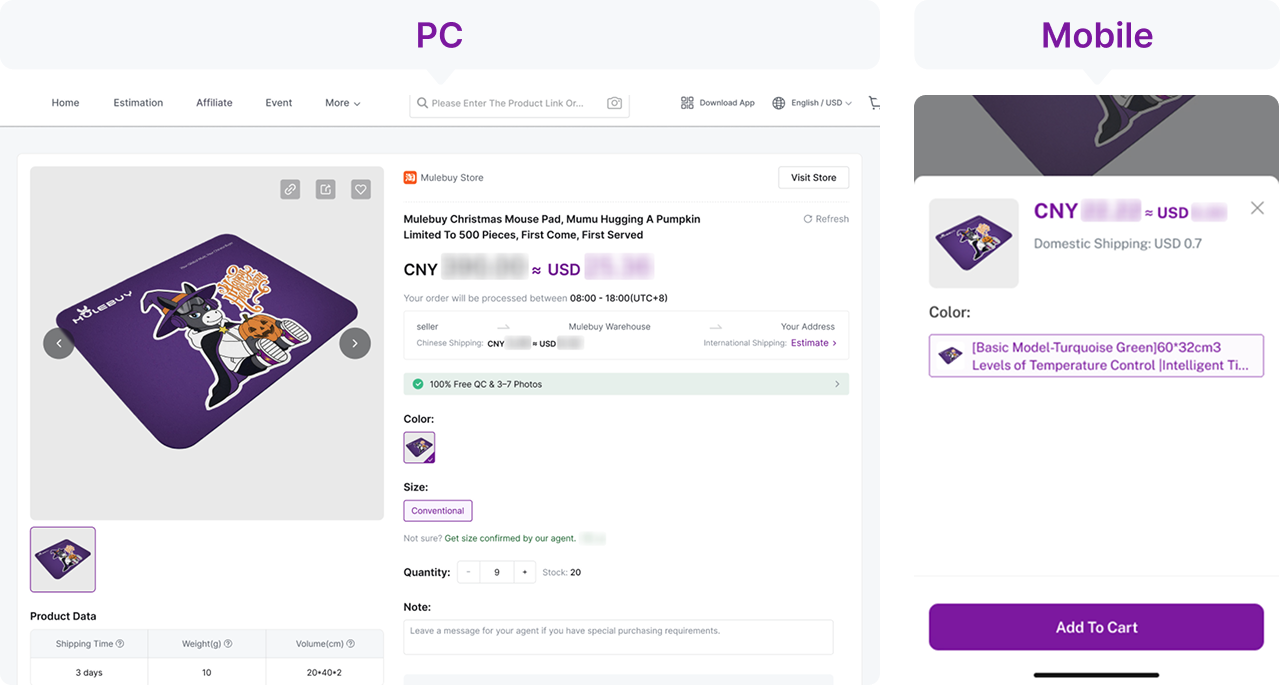
Keep the final selected-option price in the comparison. If one glasses listing includes a case and another does not, record the difference rather than treating the cheapest headline as the same purchase.
3. Follow purchase and domestic transit in Orders
After submission, distinguish payment from purchase, and purchase from the seller’s dispatch. An order may still need a price, stock or option decision. A receipt alone does not confirm that the seller has sent anything.
Use Orders and the relevant order’s Details. The demonstration includes Payment Needed, Reply Needed and Order Pending. Read the status and any message together. Keep the domestic tracking number if one is provided; there is no universal number of days for this leg.
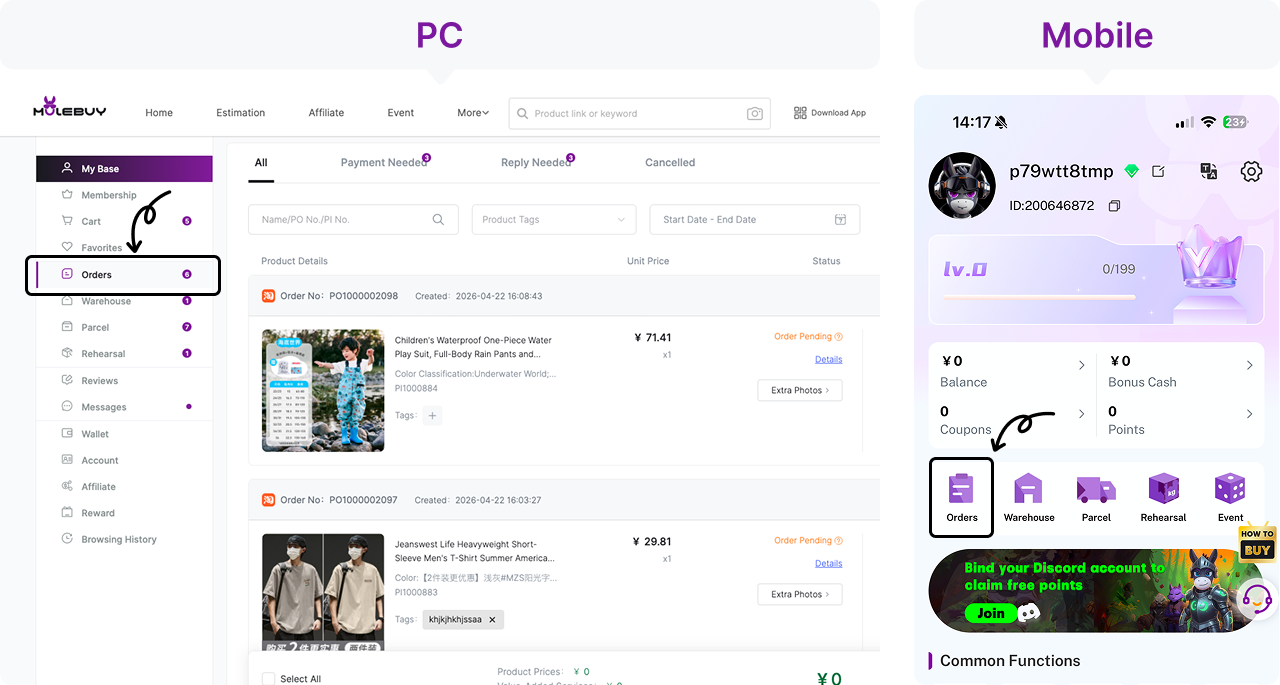
Record the date of the seller’s actual acceptance separately from payment. That keeps a slow purchase response from being mistaken for domestic transit.
4. Open Warehouse and inspect the received-item photos
Arrival, inspection and availability for parcel submission are separate events. In the official buying sequence, warehouse inspection follows domestic delivery. Check each received item against the paid option and quantity before selecting it for international shipping.
Open Warehouse, find the order and open its QC Photos thumbnail. Check the whole item, the option label and the relevant detail. If a dimension is missing, ask for a specific tape-photo view and confirm any extra charge. Visible photos do not certify authenticity, material composition or electronic function.
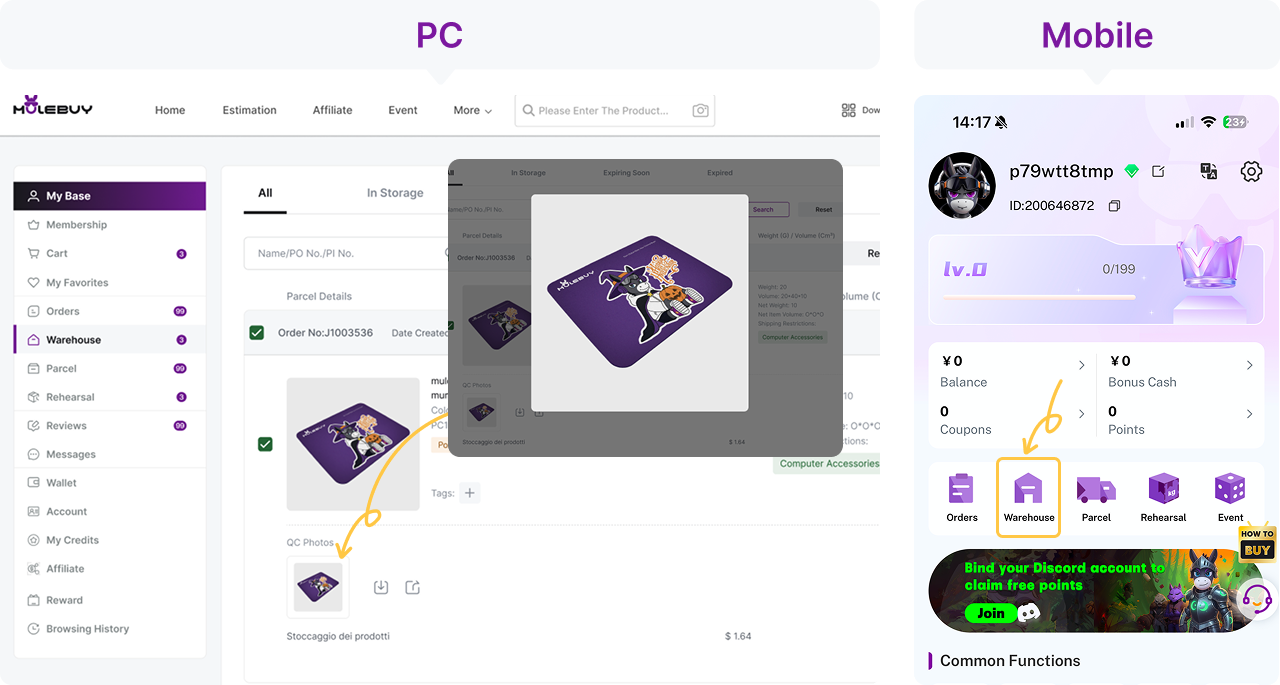
Compare like views: the received frame and the chosen frame, rather than the received frame against a collage of several colours. A missing case is only a mismatch if the paid option included it.
5. Select accepted items and submit the parcel
Choose only items whose questions have been resolved. Confirm the destination, packing choices and a line that accepts the contents. Keep unresolved items separate and check their storage deadlines; a long free-storage period does not extend a seller’s return window.
The guide text calls the warehouse actions Pre-calculate or Submit; this illustration labels the desktop alternative Rehearsal Packing and highlights Submit. Follow the label in your account. Review the estimate and optional services before confirming. Final size and weight can change the shipping charge, requiring a payment or refund of the difference.
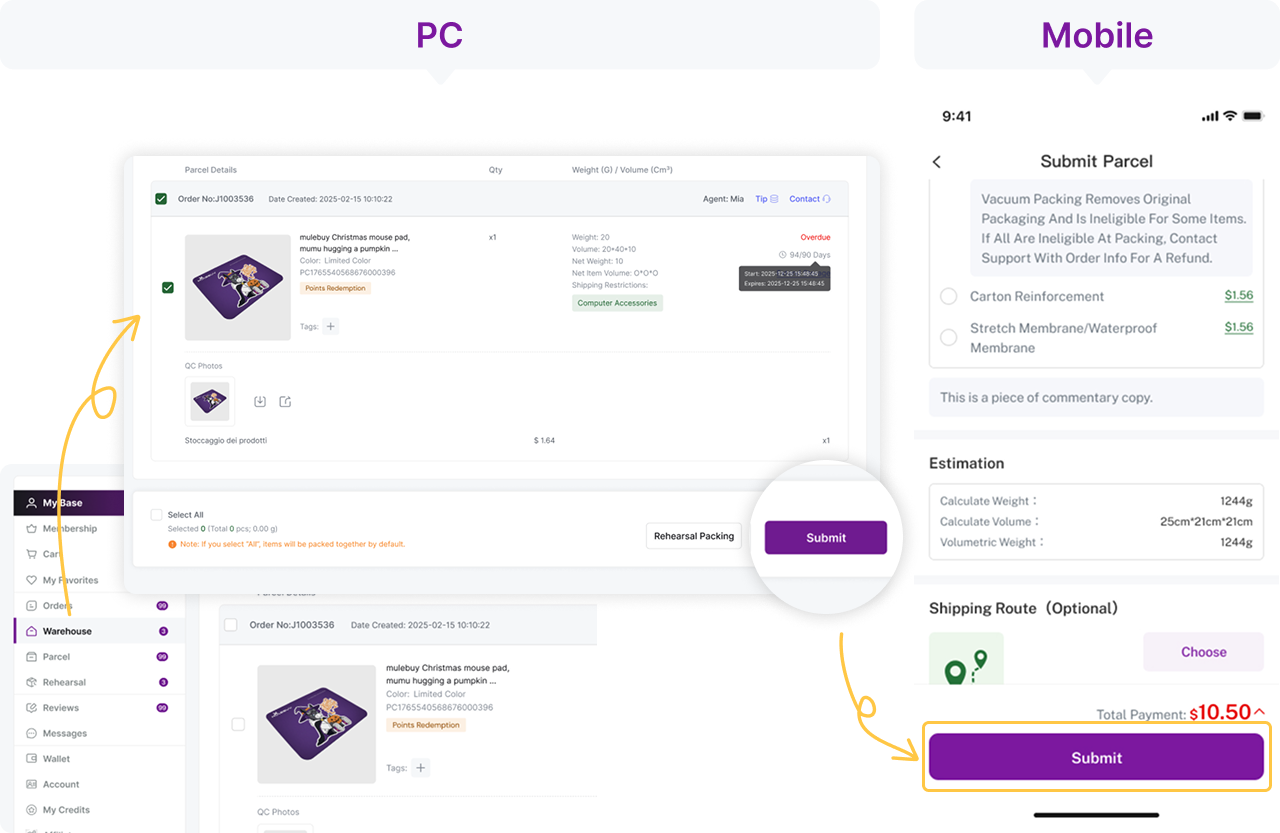
A cheap item can still make an expensive parcel. Compare the delivered-cost estimate, including packaging, rather than rerunning the item-price median as if it included freight.
6. Track the parcel and keep the delivery record
The official guide ends with parcel tracking. Keep the parcel ID distinct from the individual order IDs, because several orders can share one parcel. A parcel record or tracking number is not itself proof of carrier handover or delivery.
Open Parcel (called Parcels in the guide text) and Details for that shipment. Read its current status and tracking scans. At delivery, preserve the label, packaging and a clear record of the contents. For a mismatch, contact the agent through the channel attached to the order and supply the item and parcel references.
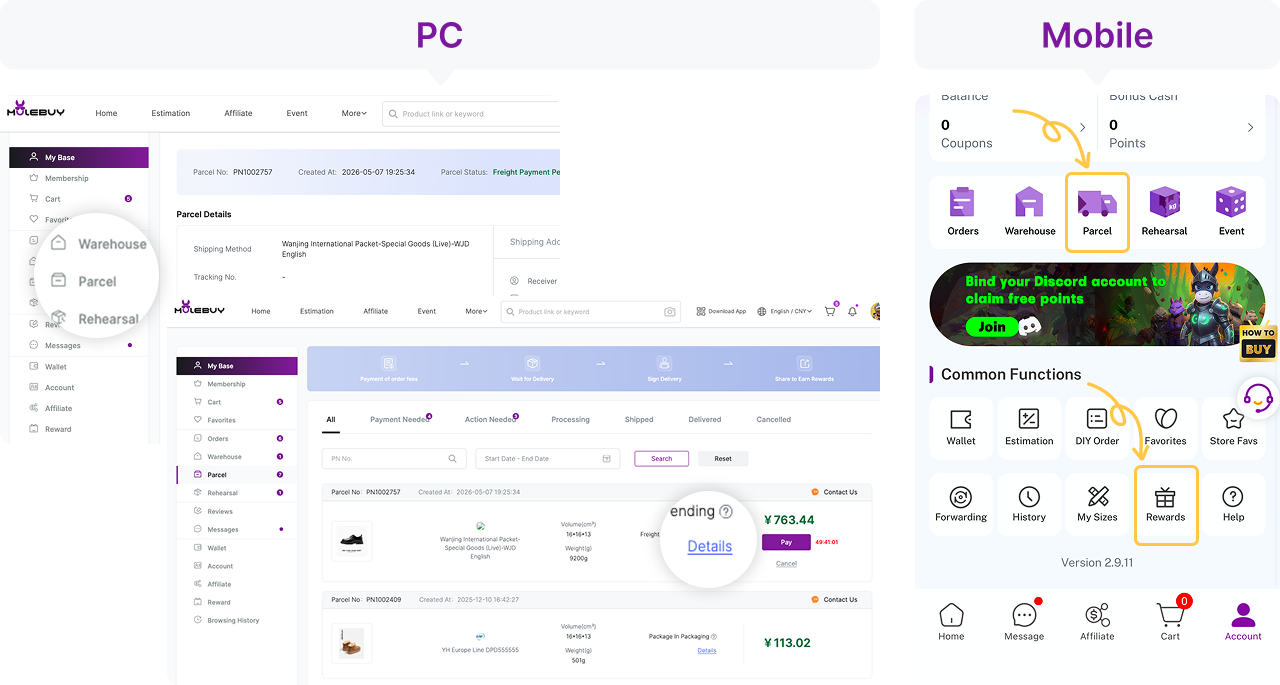
Close the comparison with what actually arrived. A previous order supplies a dated reference, not a guarantee that the next seller batch is identical.
Turn three similar thumbnails into a fair comparison
Suppose three listings show the same round sunglasses. One price is for the frame alone, another includes a case, and a third is the cheapest variant in a menu with several lens choices. Copying those three headline prices into the checker would compare different purchases.
- Open each original listing and choose the same frame size and colour, as far as the seller’s fields allow.
- Write down exactly what the option includes: glasses, case, cloth and any extra lens selection.
- Keep domestic postage separate. It may depend on the seller or number of items.
- Leave a listing out if the necessary specification cannot be confirmed. A missing measurement is not evidence that it matches the others.
- Use the comparables checker only after the set is comparable. Its median is a price reference, not proof of material, optical protection or seller reliability.
At warehouse arrival, request the views needed to match the paid option. Even a sharp photograph cannot establish lens protection or the authenticity of a printed label. Ask for appropriate product information before purchase where those claims matter.